Memory techniques are great for getting information quickly memorized for the short term.
But for any long term learning (the kind of learning you want to keep for years), regardless of how the information went in in the first place, you are going to need some spaced repletion.
Many of my memory coaching students ask me, “Now that I have memorized this, how often do I need of go back over it to make sure I have it in the long run?”
As a memory coach and 2× Australian Memory Champion, I rely on spaced repetition for my long term learning, and Anki is my favourite way to do it.
This is why I think Anki is great for long term memorizing.
Anki is flashcard software that takes the guesswork and labour out of when you have to review something. It intelligently automates showing your info on ‘cards’, and determines how often and which card to show using a set of rules and a based on your feedback, including how long ago you started studying that deck and how easy or hard you found remembering each card. There are a number of settings to allow you to tweak and alter the setup to change when Anki will next show you the card.
It makes sure you see what you need to see when you need to see it.
There are other options out there, this is just the one I like. And no, I’m not sponsored by Anki.
What do I download or install?
Firstly, there are 4 varieties of the Anki software, sorry about that : )
At first this appears cumbersome, but once you get your head around how they work together they are an awesome set of tools.
Even though this seems complicated, stick with me – it is worth the effort.
And except for the iOS app, they are all free!
All of the following Anki tools work on different platforms and synchronize together into one account, where your data and details are held centrally, making it easy to keep your spaced repetition and flashcard review consistent.
To allow synchronizing you will need an Anki account, which itself is free.
If you use an iPhone and want to use the iPhone app (which is the only part of Anki that has a cost) then get that first, as you will create your account there. Then you can download the Desktop app or access the web browser version with that login.
All downloads are grouped together on the official Anki downloads page.
Make sure you get the official apps as there are copycat programs with similar names.
Anki mobile phone / tablets Apps
There are 2 varieties of the mobile App – Apple and Android. Both are the full flash card program, with some differences due to the platform. The Apple iOS mobile app has some more features reflecting that it is a paid app.
Paid App – Apple iOS phones and iPads – Called ‘AnkiMobile’, this app cost $25 USD (at time of writing) due to the work involved, but it is worth it if you use an iPhone. Has a few more features than the free Android app.

Free – Android phones and tablets – this is a free app, downloaded from the Play store, called ‘AnkiDroid Flashcards’ because it runs on Android.
Anki desktop App
This is the version that you install to your PC, and the good news it is available on three different operating systems – Windows, macOS or Linux. It is the best tool to import / upload your study details into the Anki ‘deck’ (A Deck is a set of flash cards with your info on them). Because you have a full keyboard it is also an excellent platform for typing in new cards if manually creating or correcting them. It is quicker to search or use large decks, and the larger screen makes complex cards and images easier to view. It is free.

Anki on the web
AnkiWeb is a free companion to the other versions of Anki. You can use your existing account to log into it from any web browser, and it can be used to review your cards, synch and edit your data. It is free.

So which Anki version do I need?
I mostly practice my flash cards on my phone – eg waiting for an appointment or on a bus, or when you have some spare time out and away from your PC.
Occasionally I practice my flash cards on the Ankiweb page from my web browser on my PC, just because I am sitting at my computer and I want a big screen and full keyboard.
Very occasionally I use the Anki Desktop App on my PC if I have a new deck of flash cards I want to upload. This is the only place I can easily upload them as an import.
So how do I actually use Anki? Getting started
Great question! Now you have downloaded and installed some of the pieces above, what do you do to turn it into long term learning?
First you need to know that Anki uses ‘decks’ of ‘flash cards’ to show you your lists, where you see a prompt on the ‘front’ of a card, and you try to remember the answer. Then when you click the card it shows the ‘back’ of the card with the correct answer.
Using these decks is the key to getting spaced repetition learning, it’s the kind of system that supports long term memory rather than short term cramming. When you open a deck, Anki decides what to show you based on a number of rules and how well you remembered each card when you last reviewed them. This process will become clear later.
1. Create an account
If you are using an iPhone and wish to buy the FlashCard app for that, then set it your account there first. Once you have an account, log into all of your Anki software with the same account. Eg login to your mobile phone first, then login on the app, then login on the web. That way the logins can be saved and ready to use.
2. Add your ‘Decks (groups of cards with your info) into Anki.
There are a few ways to do this.
A simple but time consuming way is to manually add your lists into a new Anki deck, one card at time. Eg type them in on the desktop or mobile app. See the section ‘Typing in new cards using the mobile app’ for more details on that.
You can add your own lists in bulk with importing (using the Anki Desktop app) – see the section below ‘Importing to Anki using the Desktop app’ for more details on that.
Another way is to synchronise a ‘shared deck’, which is a publicly available memory list, such as common French words, or biology topics. See the section ‘Getting publicly shared decks’ for more details on that.
3. Start using your new decks
I will use the phone as the example, but reviewing works much the same on the phone, the PC app or on the Web.
On your phone, open the Anki app, if you uploaded the cards on a different device first sync there and then in your phone.
Click on the deck you want to review and start running through the ‘due cards’. These are the cards that you are due to see today, and Anki intelligently selects them for you.
You read the prompt on the ‘front’ of the card and try to recall the answer. You then touch the card to flip it over and see the answer on the back. Depending on how well you remembered it you select from one of 4 buttons down on the base of the screen. Eg ‘Easy’ or ‘Hard’ or ‘Again ‘ to see it again. Your choice is used by Anki to calculate when to show this card to you again.
When you are done looking at your due cards, click synchronize to sync your study session across all versions of Anki, including AnkiWeb, so you pick up from the same place wherever you log in.
Typing in new cards using the mobile app
Typing new cards in AnkiMobile on iOS is quick and touch-friendly.
Tap the + button at the bottom of your deck screen to add a card.
Pick your note type (like Basic) and fill in fields like Front and Back using the keyboard.
Hit Add to save it to the deck, then study away. Super simple on the go!
Importing to Anki using the Anki Desktop app
So this is a little tricky, and does have good instructions from Anki themselves. I will summarize them here, but head over to this link from Anki if you need more.
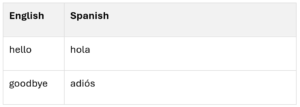
Prepare your .txt or .csv file with front/back fields separated by tabs, commas, or semicolons. You can create this in Excel or Google sheets and then save as csv. A Spanish vocab example:
Open Anki Desktop, open your deck (create a new one if needed), then go File > Import and pick the csv or txt file.
Map your columns to fields Front and Back in the dialog box.
Preview and if ok click Import.
How do you use Anki with memory techniques?
Once you are all set up with Anki you remember your information in the short run however you normally do, for example with memory techniques to speed things up. This is exactly how I use Anki in my own training and in my memory coaching with students.
You can do this as a normal learning session and then upload the information to Anki.
This is what I do if I have a large amount of learning that I am doing on a given day – let’s say learning 50 Japanese foods. I would run through the information first, as in this blog, or this How to remember language video, applying memory techniques. Then I put the new list into excel and upload the “deck” to Anki with a title like “Japanese foods”.
This way I’m combining mnemonics and spaced‑repetition flashcards, which is incredibly powerful for long term learning.
I will then proceed to go over what I have learned when Anki prompts me. Starting that very day.
You can also add random cards or decks manually when you learn something new.
This is what I do if I am reading a book and look up a new word I don’t know the definition for. I pick up my phone and quickly add the “new card” to the appropriate deck. On the front of the card is the new word, and the back the definition. I quickly make up an image for the definition, as per this video and this blog. Then I let Anki take the burden of when I have to go over this again to move it to my long term memory.
Common questions from memory coaching students
Can I just see the whole deck if I want to review them all?
Yes. Finish the due cards in that deck, click into that deck and click custom study. Then choose an option. Here, amongst other choices you can choose “cram seen cards with certain tags”.
Can I still use a memory palace to remember the information?
Yes. I often have information that I have learned stored in a memory palace. The palace location isn’t the only association to the learned information, just an extra one. Even though Anki will shuffle the cards (unless you choose to reset them), as each card shows up for review I aim to see “where” the image is along with the “answer image”. It tends to help me learn the new information especially if it is a large set of data.
Will I always have to “see” the image/story if I have remembered the new information using memory techniques?
No. When cards are new, and often for a while, it is normal to need the mnemonic to bring back the remembered information. But over time as you see a card you will find yourself saying the answer without seeing the image. You don’t need to fight this, the information is moving to your long term learning. You only need to fight to see the image if you need it to recall the information.
For more on spaced repetition and Anki check out this YouTube video. If you are after some 1‑on‑1 memory coaching with me, you can book a session here on my website and I’ll help you with memory techniques tailored to your goals.